
Installation
Dependencies
Ensure the following resources are installed and running before sd-cokemission:
| Dependency | Options |
|---|---|
| Library | sd_lib |
| Zones | PolyZone |
| Interaction | ox_target / qb-target / qtarget (or use TextUI) |
Step 1: Add the Resource
- Download
sd-cokemissionfrom Keymaster - Extract it into your server's
resourcesdirectory - Add
ensure sd-cokemissionto yourserver.cfgafter all dependencies
ini
ensure sd_lib
ensure ox_lib
ensure PolyZone
ensure ox_target
ensure sd-cokemission
Step 2: Add Items
If using the sealed cache system (Config.UsingSealedCache = true), register these items:
lua
-- Add to ox_inventory/data/items.lua

['sealed_cache'] = {
    label = 'Sealed Cache',
    weight = 15000,
    stack = false,
    close = true,
    description = 'A heavy and resilient lockbox',
    server = {
        export = 'sd-cokemission.useSealed_cache',
    },
},
['cache_key'] = {
    label = 'Cache Key',
    weight = 500,
    stack = false,
    close = true,
    description = 'Key used for lock boxes',
},
lua
-- Add to qb-core/shared/items.lua

['sealed_cache'] = { name = 'sealed_cache', label = 'Sealed Cache', weight = 15000, type = 'item', image = 'sealed_cache.png', unique = true, useable = true, shouldClose = false, description = 'A heavy and resilient lockbox' },
['cache_key']    = { name = 'cache_key',    label = 'Cache Key',    weight = 500,   type = 'item', image = 'cache_key.png',    unique = true, useable = true, shouldClose = true,  description = 'Key used for lock boxes' },
sql
-- Import sd-cokemission/[SQL]/ESX/items.sql or run manually:

INSERT INTO `items` (`name`, `label`, `weight`) VALUES
  ('sealed_cache', 'Sealed Cache', 150),
  ('cache_key', 'Cache Key', 5);
Also ensure your reward items exist (default: coke_brick, weed_brick).
Step 3: Copy Item Images
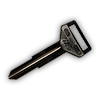
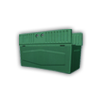
Copy the item images from sd-cokemission/images/ to your inventory's image folder:
| Inventory | Image Path |
|---|---|
| ox_inventory | ox_inventory/web/images/ |
| qb-inventory / ps-inventory | <inventory>/html/images/ |
| qs-inventory | qs-inventory/html/images/ |
| codem-inventory | codem-inventory/html/itemimages/ |
| origen_inventory | origen_inventory/ui/images/ |
Coke Mission Item Images2 images
TIP
If you are using a custom inventory, place the images wherever your inventory loads item icons from.
Step 4: Start and Verify
- Start your server
- Check the server console for any errors
- The Boss NPC spawns at one of 3 random locations
- If
Config.Blip.Enableis true, look for the blip on the map
WARNING
Make sure sd_lib is started before sd-cokemission in your server.cfg, or the resource will fail to load.
TIP
No database tables are required. All state is managed in memory.