
Admin Panel
/computeradmin opens a panel listing every computer, security camera and printer on the server, with who is sitting at which computer, its style and its job lock. It places new ones in game without touching a config file, and what it places is live at once for everyone. It is the same panel and placement gizmo as Bombs & Breakable Walls and Scooters, so they look and handle the same.
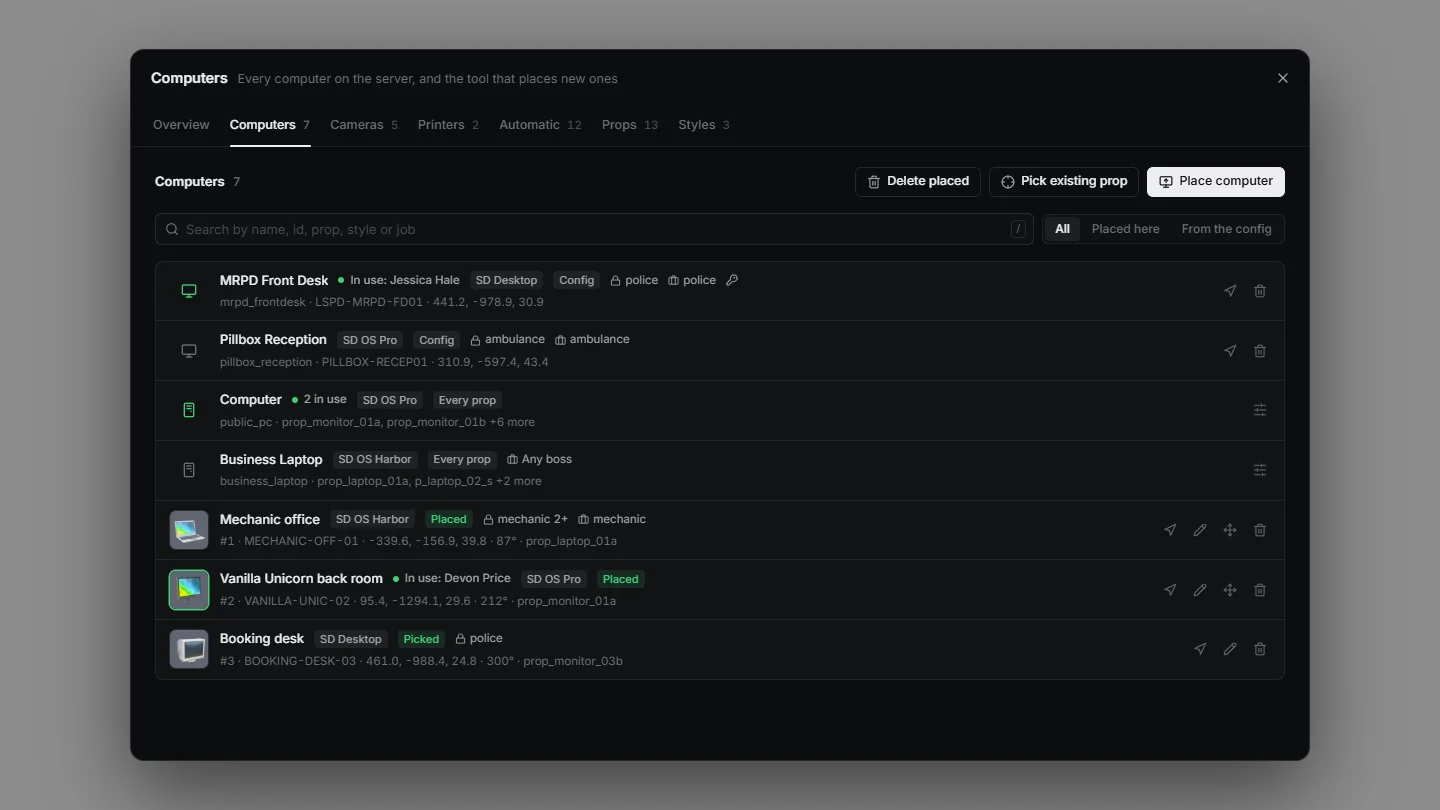
| Tab | What it does |
|---|---|
| Overview | Counts at a glance, computers by style and by prop, the rules in force, and what was done this session |
| Computers | Every computer: place one, pick one from the world, change, move, go to, remove |
| Cameras | Every security camera: put one up by flying a camera to where it hangs |
| Printers | Every printer, with what is waiting in its tray: place one or pick one from the world |
| Automatic | Whether the monitors and laptops around the map are computers on their own, model by model |
| Props | Every prop a computer can be, where each is used, adding your own, and drawing a prop's screen |
| Styles | The three looks, shown as they greet whoever sits down, and how many computers use each |
Placing a Computer
- Place computer: pick the prop it stands as (
Propsinconfigs/shared/admin.lua), the style it opens in (modern,retro,mac, or the server default), a name, and optionally the jobs that may use it and who gets the Business Manager on it. - The placement gizmo takes over. The prop starts on the desk, counter or floor you were looking at when that is close by (
PlaceReach), and a step in front of you otherwise. Move and turn it; Enter places it. - It is live at once, with the same "Use Computer" option as any other computer.
A placed computer can be changed (name, prop, style, jobs, Business Manager), moved with the gizmo, gone to and deleted from its row. Placed computers are kept in the computers_placed table with the ids placed_<n>, which is what keys their System Logs.
Picking a Prop the Game Already Has
Pick existing prop makes a computer of a monitor or laptop that is already in the world, instead of standing a new one. Set its name, style and jobs, then aim at the prop (it is boxed while you look at it) and press Enter or click. Nothing is spawned: the prop becomes a computer of its own, like a placed one, and stops being the automatic computer its model would otherwise make it. Delete it to give the prop back. Any model in Props, or in a model list of computers.lua, can be picked.
Computers From the Config
The computers in configs/shared/computers.lua are listed too, but cannot be changed there. A location from that file can be removed from its row and restored again: the file is not touched, the computer just stops being one (nobody can open it, and its monitor goes back to its stock look) until it is restored.
The Business Manager on a Placed Computer
The same dialog decides who gets the Business Manager, which is what boss does in computers.lua:
- Off: nobody manages a job from it.
- Any boss: whoever signs in as the boss of a job manages that job (
boss = true). Good for a shared laptop. - One job: only that job's boss gets it (
boss = 'police'). Type the job as your framework spells it, or pick it from the list of the server's jobs under the field.
The line under it says in plain words who gets the app, and warns when nobody would: the server has no job of that name, the job has no boss grade, or the job lock leaves that job out (one click adds it). A job that does not exist yet can still be saved; the app shows up once it does. Changing the setting signs out whoever is using that computer, so it applies at once.
Automatic Computers
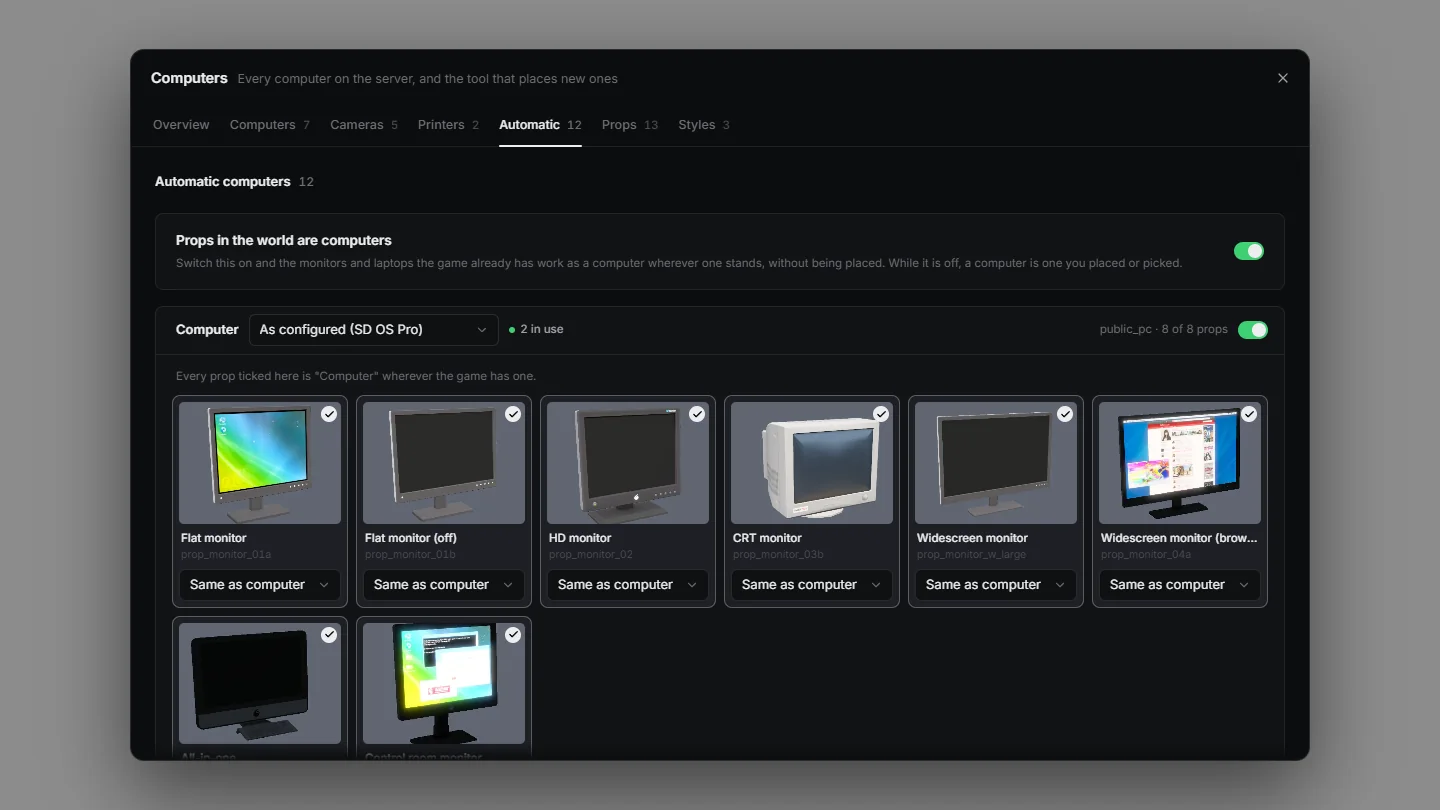
The Automatic tab is the model computers of computers.lua: the ones that make every prop of a model a computer wherever the game has one. They are off out of the box.
- One switch for all of them: off, and no prop in the world is a computer unless you placed or picked it. It starts where
Automaticinconfigs/shared/admin.luahas it (false). - One switch for each model computer.
- A tick for every prop, so "flat monitors yes, the CRT no" is one click. A prop from
Propsthat nomodellist names shows as an extra any of them can take on. - A style for each model computer, and one of its own for any prop of it: the CRT can open in the retro desktop while every other monitor stays modern. The lock face on the prop follows.
What the panel changes is kept in the database (computers_settings) and wins over the file; a prop nobody touched still follows the file. The switches decide which props offer a computer and show a screen. They are not a lock: a switched-off entry still opens for a script through OpenComputer, so use groups to keep people out of one.
Props
The Props tab is the catalogue of every prop a computer can be, each with where it is in use. Add prop (also the last tile of the prop grid when placing) adds a model without editing a file: its model name, what to call it, and whether it is a monitor, a tower or a laptop. The game is asked whether the model exists before it is kept, so a streamed prop works as long as its resource is running.
Every tile also has a screen button, Draw screen or Adjust screen, which opens the tool that draws where the prop's screen is. Both are covered on Props & Screens.
Security Cameras
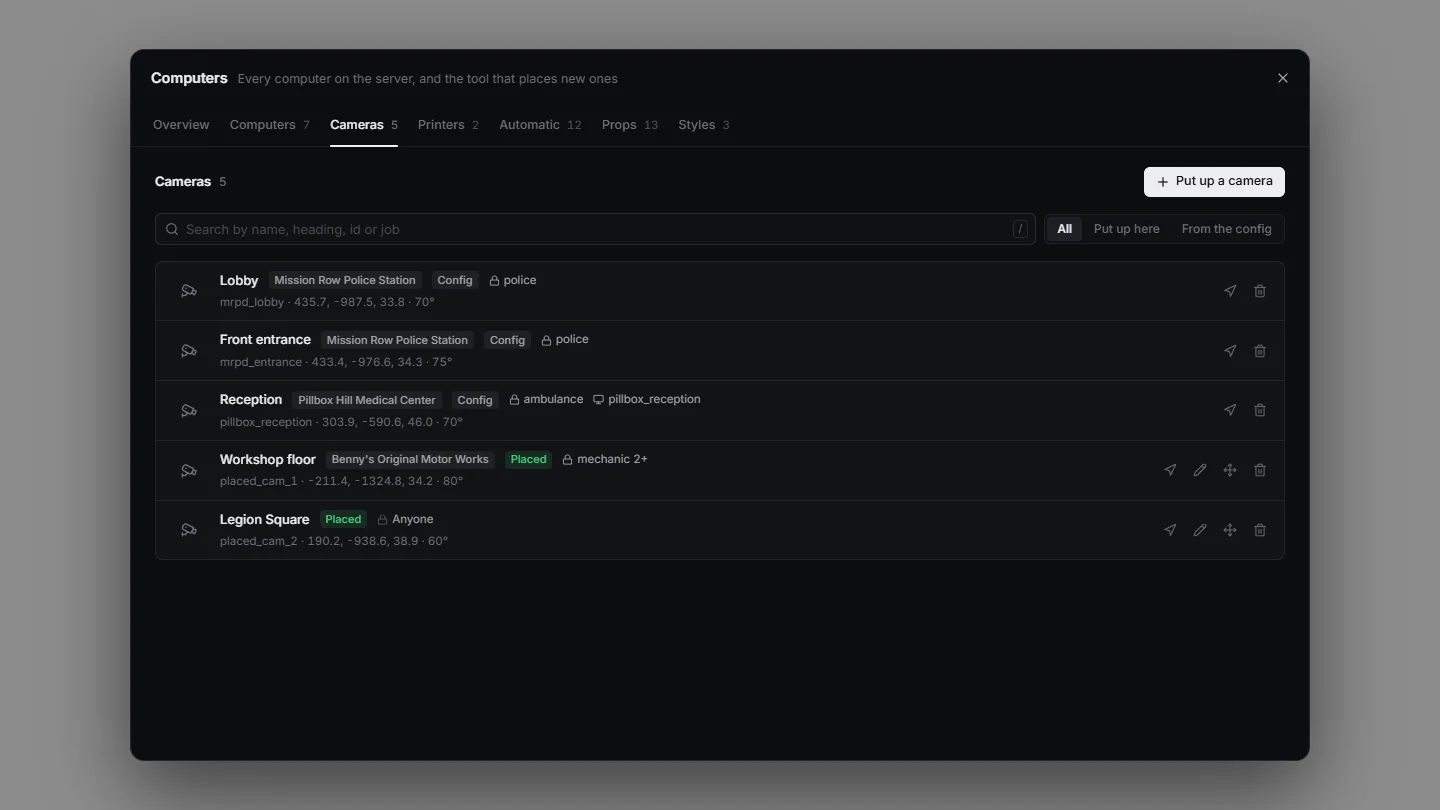
- Put up a camera: give it a name, the heading the app lists it under, and optionally the jobs (or gangs) that may watch it, each with a lowest grade. No jobs listed means anyone sitting at a computer can watch it.
- A free camera takes over. Fly it to where the camera should hang (W A S D, Space and Ctrl for height, Shift faster, Alt slower), aim with the mouse and zoom with the wheel. What is on the display is what the camera will show. Enter keeps it, Backspace cancels.
- It is in the Security Cameras app at once, for the players it is for.
A camera put up this way can be renamed, given to other jobs, moved or aimed again, gone to and taken down from its row. The cameras in configs/shared/cameras.lua show in the tab too, and can be removed and restored there without the file being touched. Cameras from the panel are kept in the computers_cameras table.
Printers
- Place a printer: name it, pick the prop (
Propsinconfigs/shared/printers.lua), and stand it with the placement gizmo, on a desk or the floor. - Or Pick existing prop: aim at a printer or copier the game already has. Nothing is spawned; that prop becomes the printer.
A printer can be renamed, moved, gone to and removed from its row. Removing one throws away what was in its tray. See Printers for what printing does.
Permissions
The panel uses aces, like the other admin panels:
| Who | Gets |
|---|---|
Group (default group.admin) | The command and the edit ace sd_computers.edit: everything |
ViewGroup (default off) | The command only: they can open the panel and look, but not change anything |
To let another principal edit, give it both:
add_ace group.mod command.computeradmin allow
add_ace group.mod sd_computers.edit allow
The settings are under Configuration > Admin Panel.