
Props & Screens
A computer is a prop: a monitor or a laptop on a desk, placed from the admin panel or already in the world. This page shows every prop that comes on the list, how to add your own, and how the desktop sits on a prop's screen, both for the player using it and for everyone standing nearby.
Computer Props
The props a computer can be placed as, or picked from the world as (Props in configs/shared/admin.lua). Every monitor and laptop here has its screen measured, so the desktop is drawn on it and the camera goes up to it.
Monitors
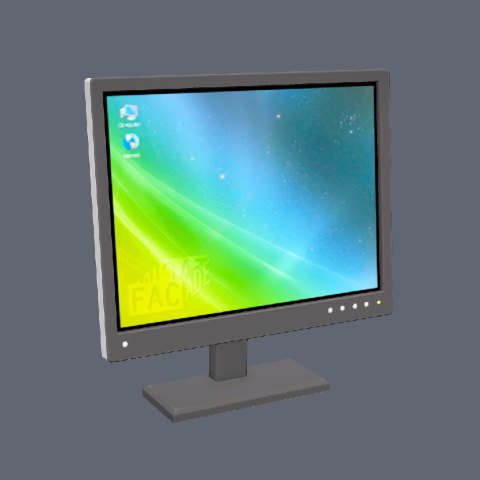
prop_monitor_01a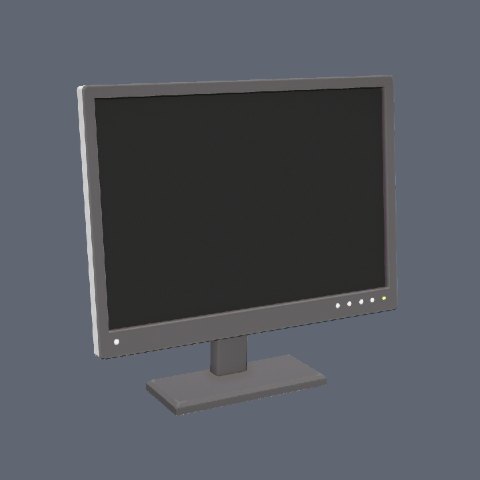
prop_monitor_01b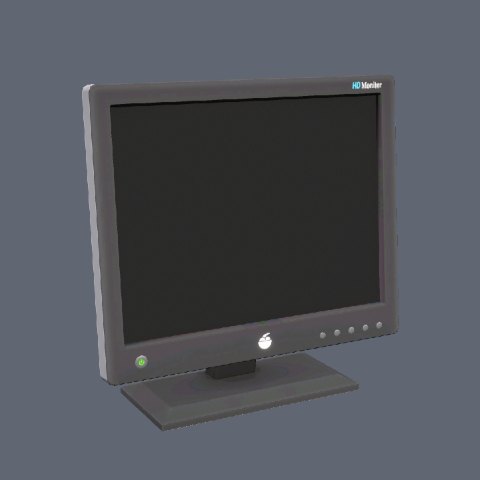
prop_monitor_02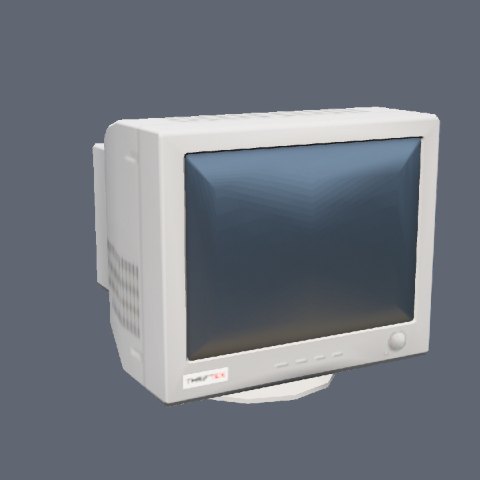
prop_monitor_03b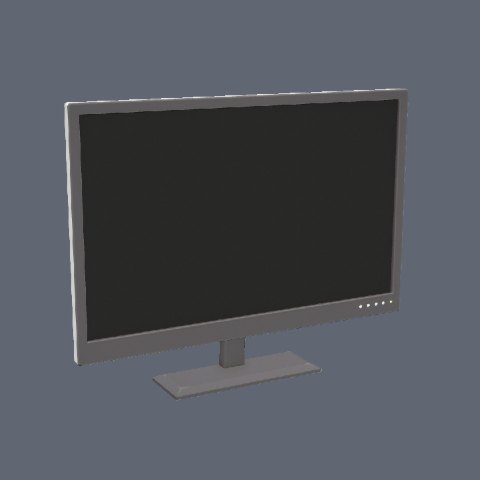
prop_monitor_w_large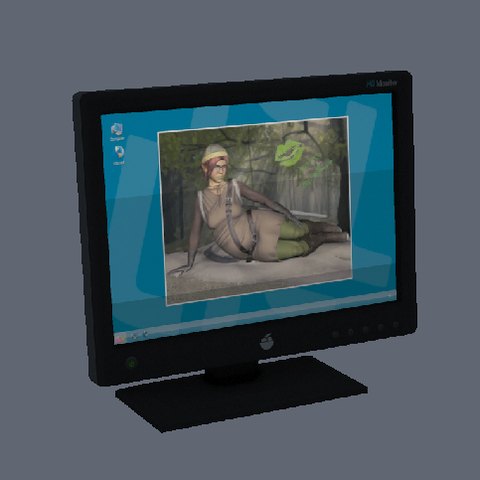
prop_monitor_01c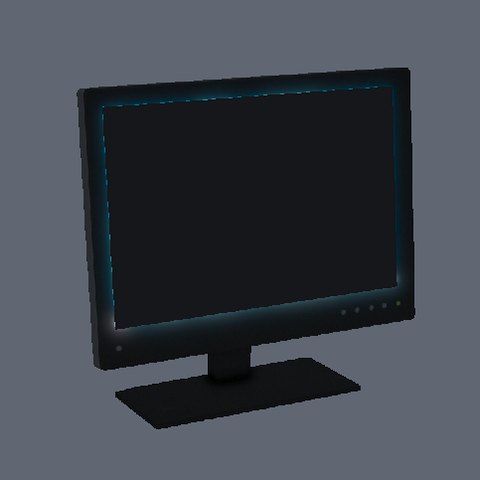
prop_monitor_01d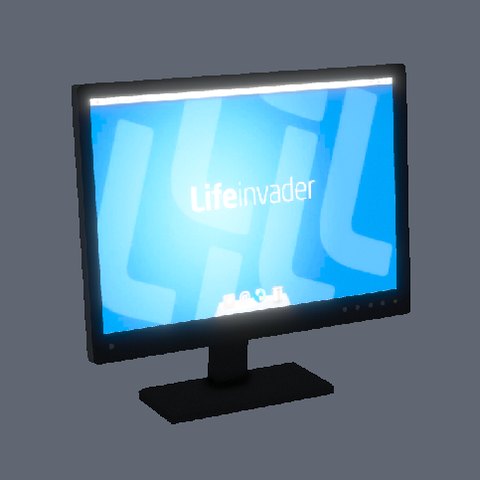
prop_monitor_li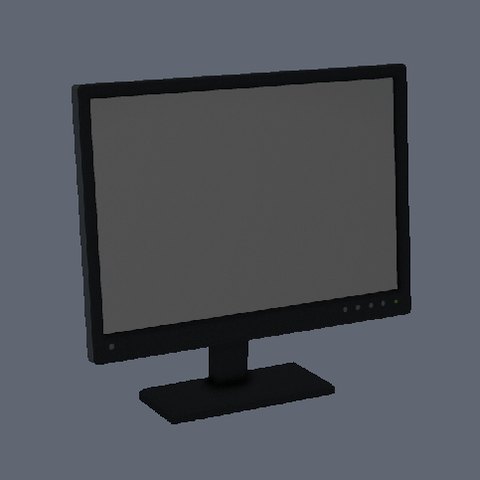
tr_prop_tr_monitor_01a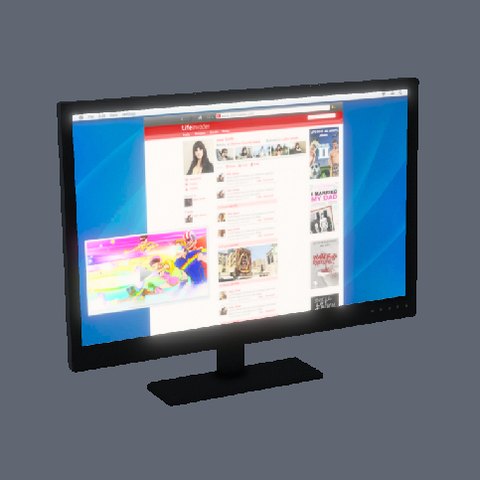
prop_monitor_04a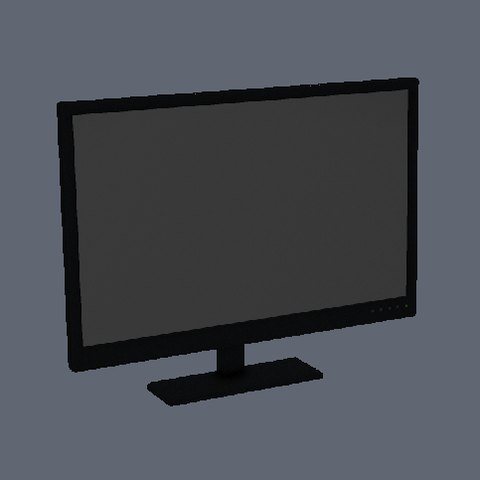
xm_prop_x17_computer_02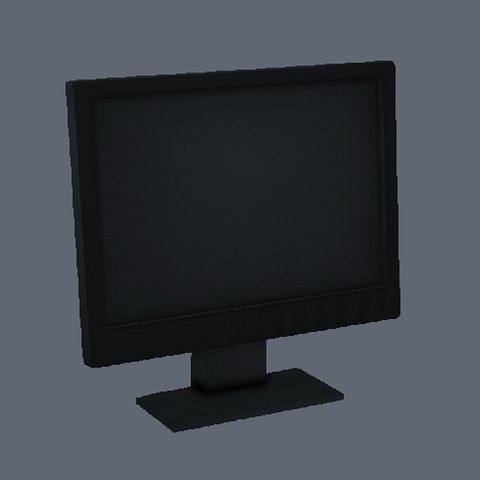
prop_ld_monitor_01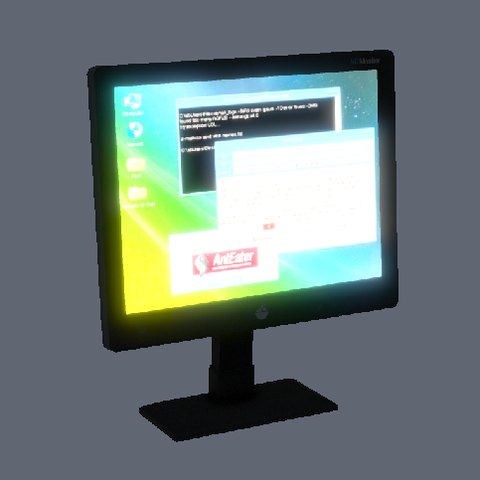
v_serv_ct_monitor01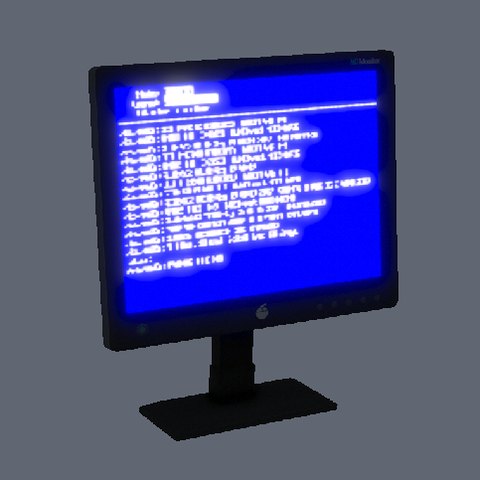
v_serv_ct_monitor02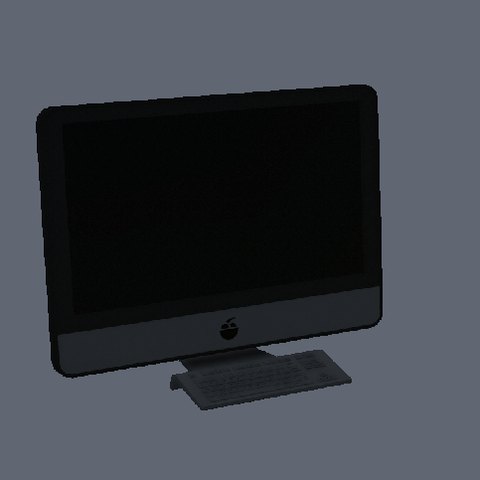
ex_prop_monitor_01_ex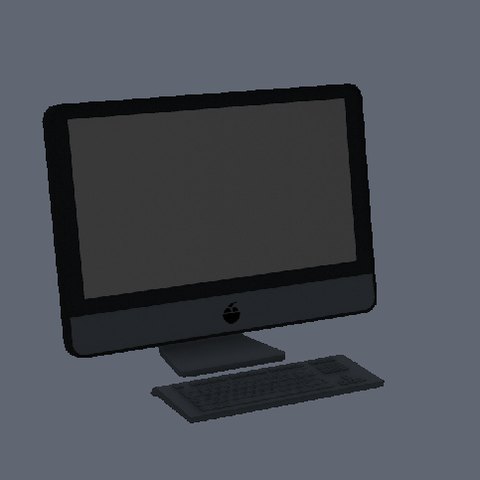
sm_prop_smug_monitor_01Laptops
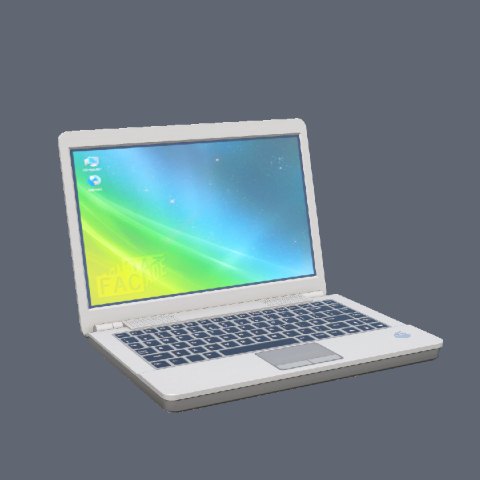
prop_laptop_01a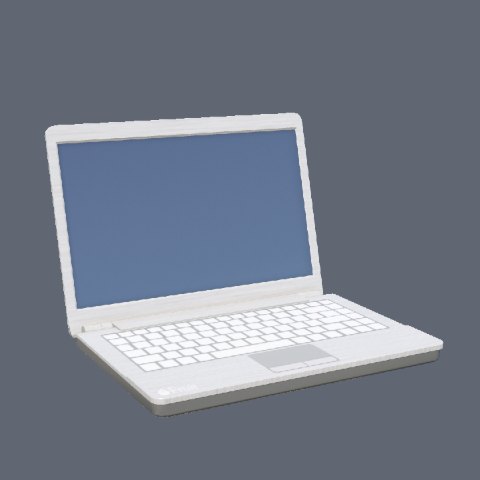
p_laptop_02_s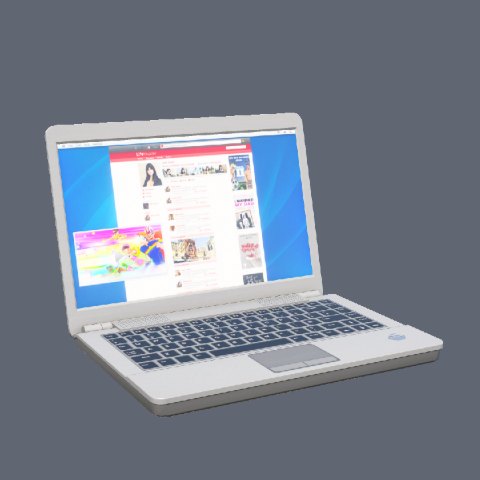
prop_laptop_lester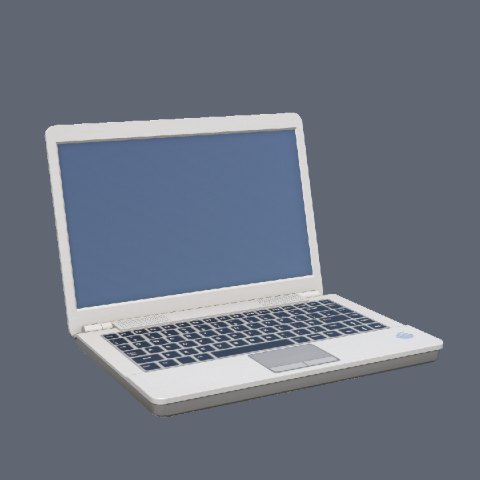
prop_laptop_lester2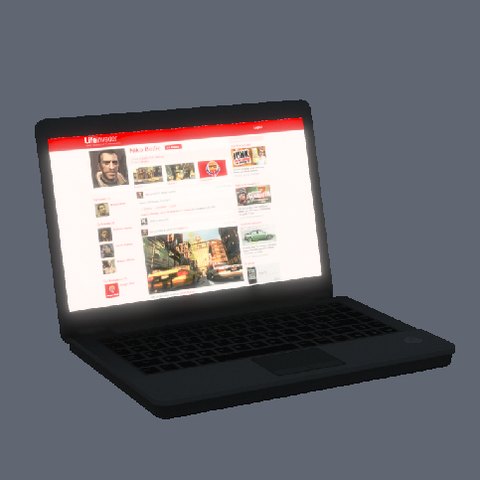
prop_laptop_jimmy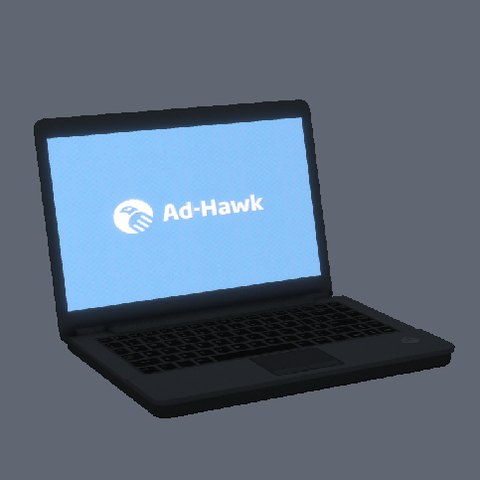
ex_prop_ex_laptop_01a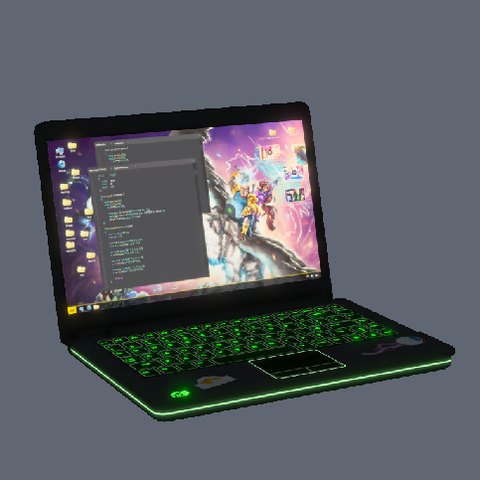
xm_prop_x17_laptop_lester_01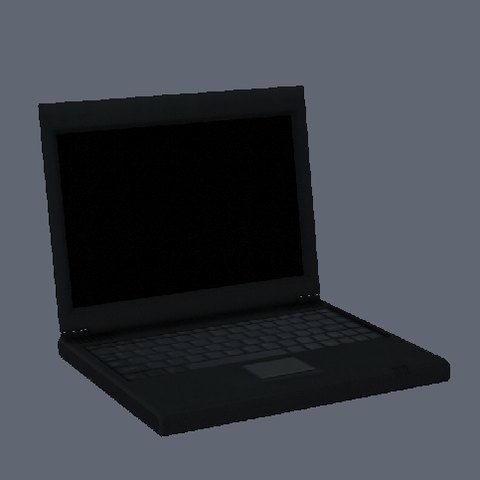
p_cs_laptop_02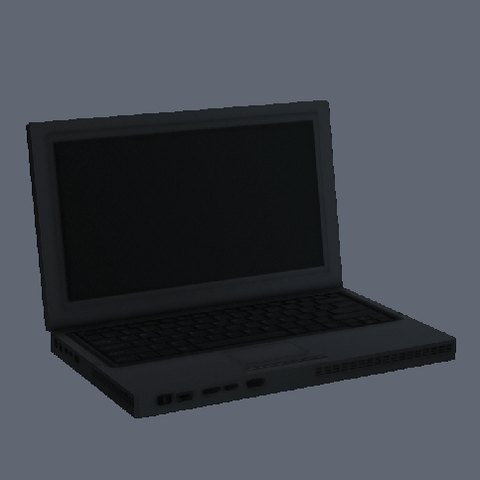
v_ind_ss_laptopTower PCs
A tower has no screen, so towers are left off the list out of the box: they are commented out in Props. Take the dashes off to offer them (or add one from the panel). A computer that is a tower opens fullscreen.
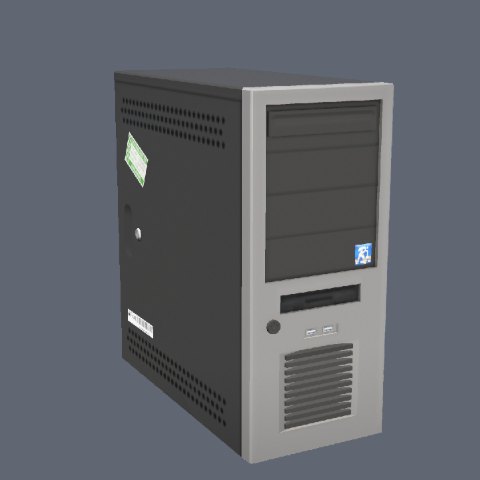
prop_dyn_pc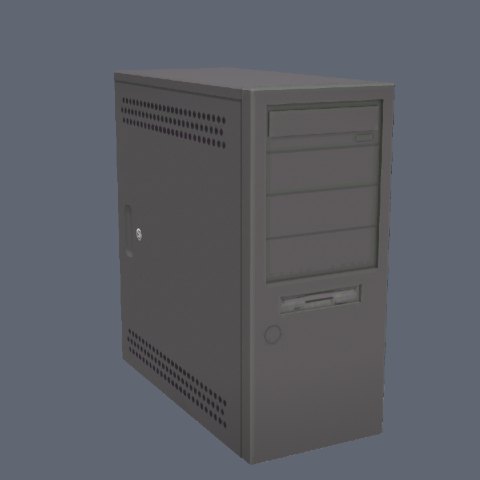
prop_dyn_pc_02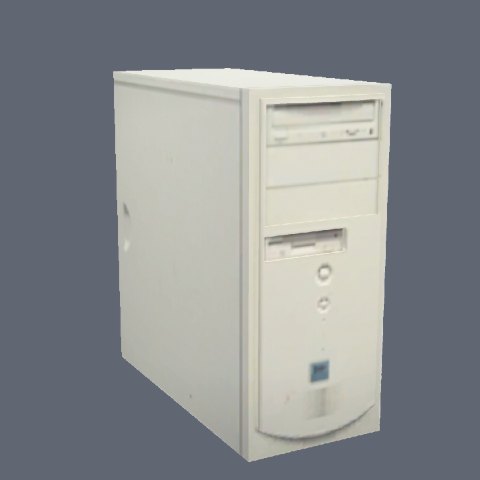
prop_pc_01a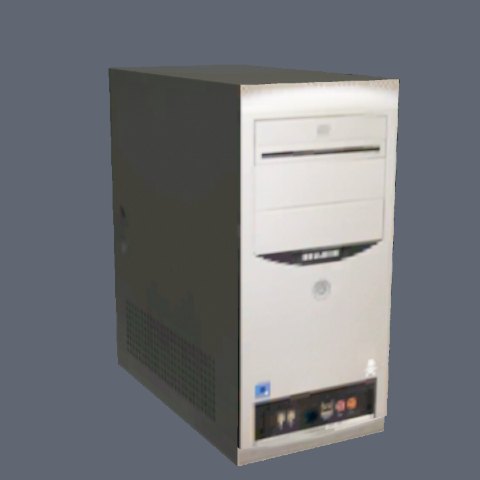
prop_pc_02a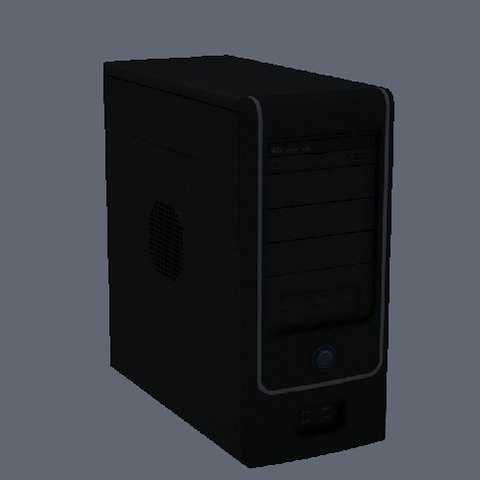
hei_prop_heist_pc_01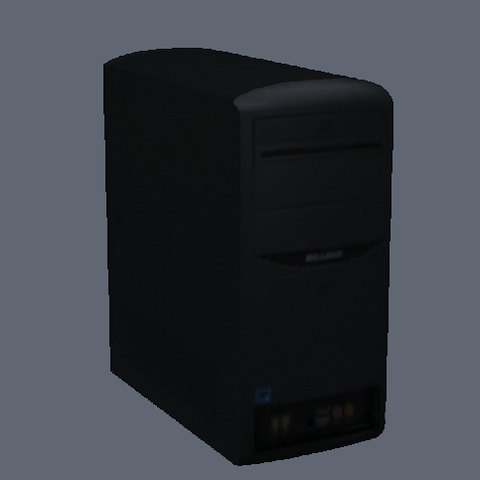
v_res_pctowerPrinter Props
The props a printer can be placed as, or picked from the world as (Props in configs/shared/printers.lua).
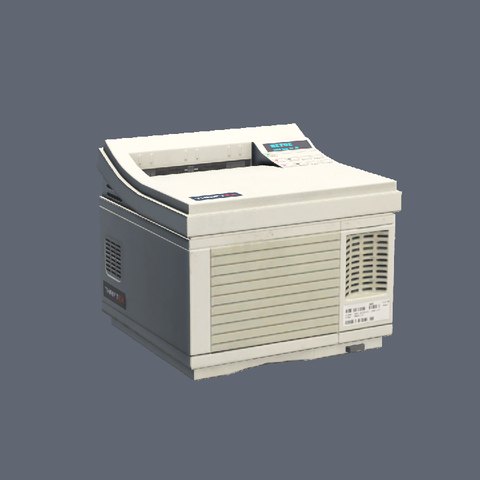
prop_printer_01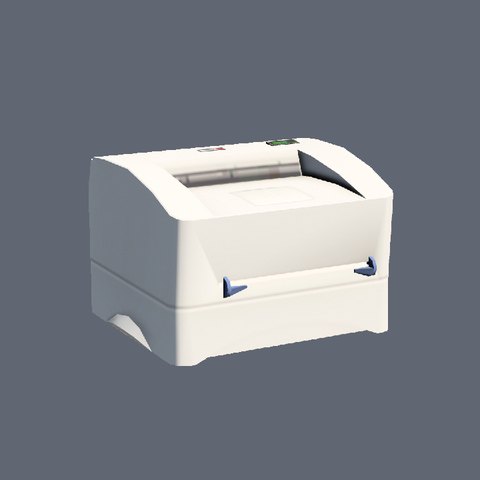
prop_printer_02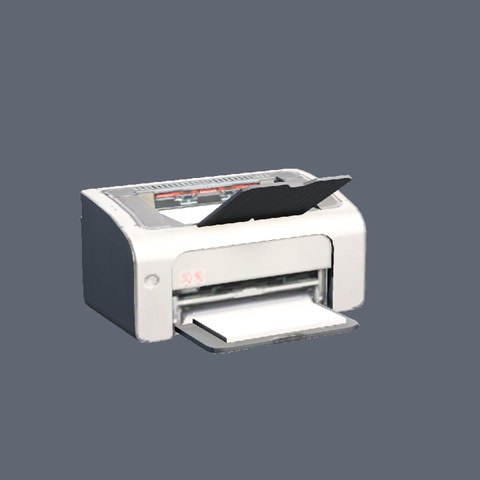
v_res_printer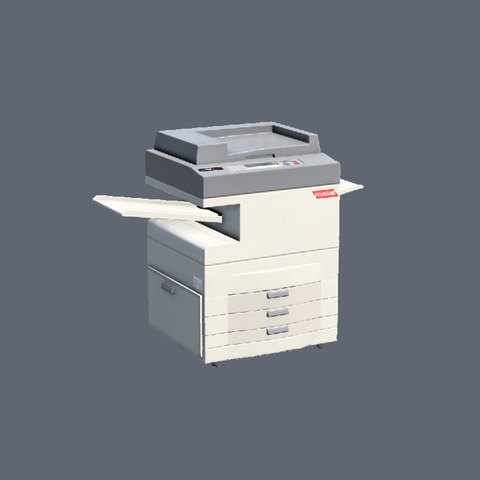
prop_copier_01Adding Your Own Props
From the panel. /computeradmin > Props > Add prop: a model name, what to call it, and whether it is a monitor, a tower or a laptop. The game is asked whether the model exists before it is kept, so a streamed prop works as long as its resource is running. From then on a computer can be placed as it, one can be picked from the world, and the Automatic tab offers it as an extra. Props added this way are kept in the database, and can be removed from their tile (not while a computer is placed as one).
In the config. Add a line to Props in configs/shared/admin.lua:
{ model = 'my_office_monitor', label = 'Office monitor', kind = 'monitor', image = 'https://...' },| Field | Description |
|---|---|
model | The prop's model name. A model the game does not have is refused when placed |
label | What the panel calls it |
kind | 'monitor', 'tower' or 'laptop': the icon the panel falls back to when the prop has no picture |
image | Optional picture address. Without it the panel shows web/public/props/<model>.jpg (rebuild the interface after adding one) |
Props With Their Screen Already Measured
A prop only gets the desktop on its screen when the resource knows where that screen is. Besides the props above, configs/shared/screens.lua has the screen of these models, which are the same shape as one on the list with something else on screen. Add any of them from the panel and its screen works at once:
vw_prop_vw_monitor_01, ch_prop_ch_monitor_01a, tr_prop_tr_monitor_01b, v_serv_ct_monitor03 to v_serv_ct_monitor07, p_amb_lap_top_02, xm_prop_x17_laptop_agent14_01, xm_prop_x17_laptop_avon, gr_prop_gr_laptop_01a, gr_prop_gr_laptop_01c, ch_prop_laptop_01a, m23_1_prop_m31_laptop_01a, xm3_prop_xm3_laptop_01a.
For any other prop, draw its screen. Without a screen it is still a computer; it opens fullscreen.
At the Screen
Using a computer does not cover the game with a desktop. The camera moves up to the prop, square on to its screen, and the desktop sits exactly inside it: the monitor's bezel or the laptop's lid is the frame, and the room is still there around it. Mouse and keyboard work as usual.
- The desktop keeps its own resolution and takes the shape of the screen it is on, so it is the same desktop on a 720p display and a 4K one, on a square monitor and a wide laptop.
- The retro look leaves its drawn CRT off there: the prop is the monitor.
- A computer with no screen to go to opens fullscreen: a tower, a location with no monitor standing in its box, a laptop opened from a script with no prop.
View = 'fullscreen'inconfigs/shared/interact.luaopens every computer fullscreen.Camerasets the framing, the field of view and how long the camera takes. See Configuration.- While a security camera is being watched, the game looks through that camera, so the room around the screen is a still picture until the player goes back to the list of cameras.
Screens in the World
A computer's prop shows its screen to everyone around it:
| The computer is | Its screen shows |
|---|---|
| Not in use | The lock face of its style: wallpaper and clock |
| In use | A live copy of the session: the windows that are open, what is being typed, the pointer, the hacking minigames |
Walk past a desk and you can see that someone is in Command Prompt, read the mail they have open, or watch a breach in progress. PIN and password fields are always masked, and the /computeradmin panel is never part of the picture. There is no sound, and the copy runs a fraction of a second behind.
- Which props: the ones
Modelsinconfigs/shared/screens.luahas a screen for. Towers are left alone. A location computer shows on the screen prop standing inside its box, when there is one. - What it costs: each screen is a small browser drawn on the prop. Every idle screen of a style shares one, so an office full of monitors is three at most. A computer in use gets one of its own, for the nearest
MaxLive(3). The player at the computer only records while somebody is actually watching, and what travels is the page's changes, not video: a few KB when a window opens, next to nothing while they read. - Switches:
Enabled = falseturns screens off entirely.Idle = 'off'leaves unused props alone and lights only the ones in use.Mirror.Enabled = falsekeeps a computer in use on its lock face, so nothing of a session ever leaves the player's game.
All of these are in Configuration > Screens.
Drawing a Prop's Screen
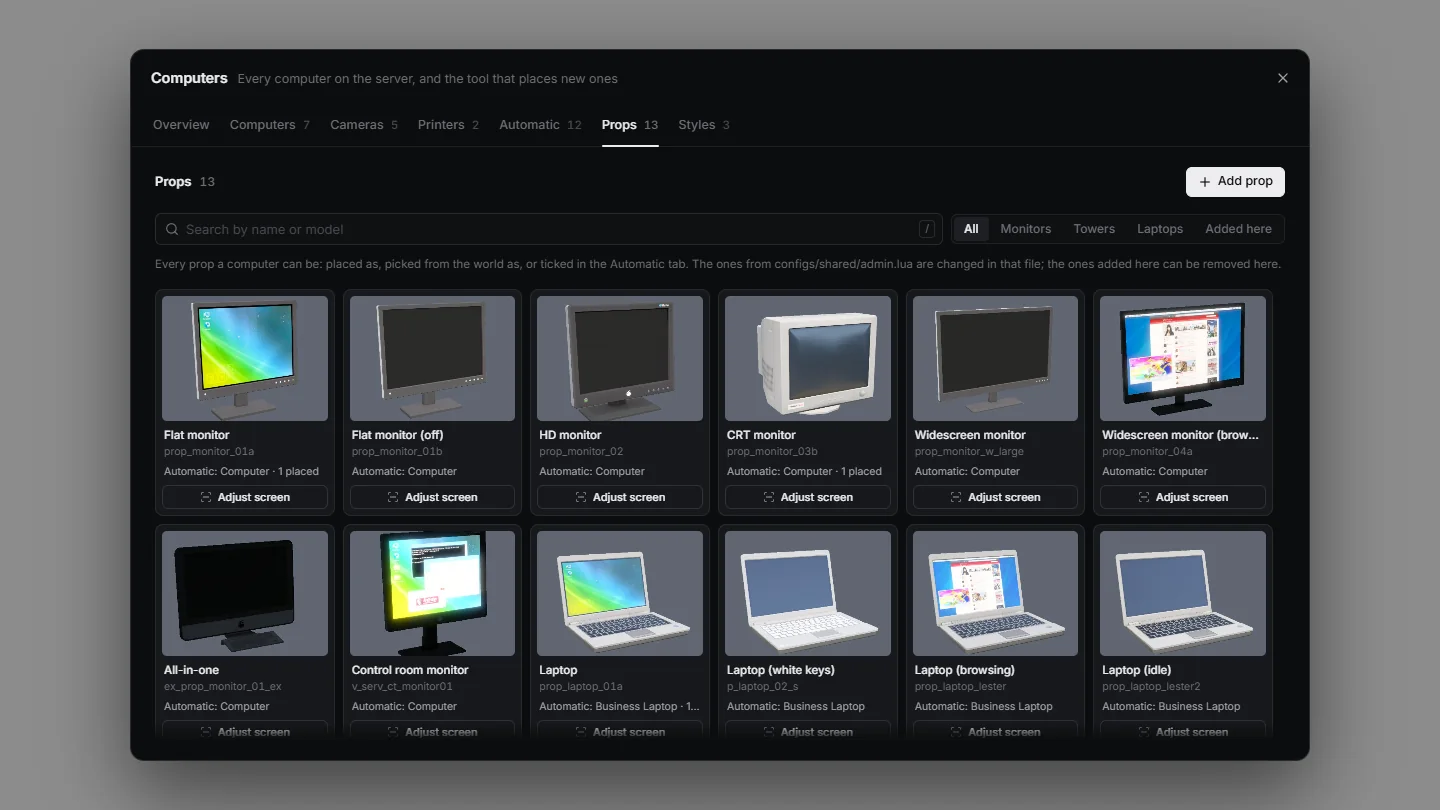
Every tile in the panel's Props tab has a screen button: Draw screen on a prop that has none (it is marked "No screen"), Adjust screen on one that has. It opens the screen tool: the prop on its own in front of a plain backdrop, where you draw its screen with the mouse, with the lock screen shown in the box exactly as players will see it.
| Do this | With |
|---|---|
| Draw the screen corner to corner; then drag its middle to move it, an edge or corner to resize it | Left mouse button |
| Push it into the prop or pull it out, until it sits on the glass | Mouse wheel (Shift: bigger steps) |
| Lean it back, for a laptop lid or a monitor on a stand | Q / E |
| Nudge it a millimetre | Arrow keys |
| Sit it on the prop's surface (a first guess, as good as the prop's collision) | G |
| Look at it from any side; front view; side view | Hold right mouse button; F; V |
| Zoom; hide the picture to see the prop's own glass; put the screen on another side of the prop | Ctrl + wheel; H; R |
Undo; start over; copy it as a line for screens.lua | Ctrl + Z; Del; C |
| Save; cancel | Enter; Backspace |
A screen is a flat rectangle, so curved glass gets the nearest flat one. What you draw is kept in the database (computers_settings) and applies to every prop of that model, for everyone, at once. It wins over the rectangle screens.lua has for the same model, so a built-in screen that sits a little off can be redrawn too; the arrow button beside Adjust screen takes a drawn screen away again.
By Hand
Models in configs/shared/screens.lua has one line per model. Press C in the screen tool to copy a drawn screen as one.
prop_monitor_01a = { centre = vec3(-0.0015, -0.066, 0.313), size = vec2(0.429, 0.315), tilt = 4.9 },| Field | Description |
|---|---|
centre | vector3: the middle of the lit area, from the prop's origin with the screen facing you (x right, y away from you, z up) |
size | vector2: its width and height in metres |
tilt | Degrees the screen leans back (a laptop lid, a monitor on a stand). Default 0 |
heading | Degrees the screen is turned from the prop's front, for a model that faces another way. Default 0 |
Put it on the glass (in front of it, it floats when seen from the side), and where the glass sits back in a bezel make it a few millimetres too large: the bezel hides the overlap, and none of the prop's own screen shows round the edge.