
Installation
Supported Inventories
| Inventory | Status |
|---|---|
ox_inventory | Supported |
tgiann-inventory | Supported |
jaksam_inventory | Supported |
qs-inventory | Supported |
qs-inventory-pro | Supported |
origen_inventory | Supported |
qb-inventory | Supported |
ps-inventory | Supported |
lj-inventory | Supported |
codem-inventory | Supported |
Recommendation
We heavily recommend using ox_inventory — it's the best inventory system available and more importantly, it's completely free and open source! You won't be missing out on any features in our scripts if you use a different inventory, this is simply a recommendation.
Dependencies
Ensure the following dependencies are installed and running on your server before starting:
| Dependency | Required | Notes |
|---|---|---|
| Framework | Yes | qb-core / qbx_core / es_extended |
| ox_lib | Yes | |
| oxmysql | Yes | |
| Target System | Yes | ox_target / qb-target / qtarget |
| Inventory | Yes | Any of the supported inventories listed above |
| object_gizmo | Optional | For gizmo-based placement with full rotation control |
TIP
Framework, target system, and inventory are all automatically detected — no configuration needed. Any required database tables are also created automatically on first start.
1 Add the Resource
- Download the latest version of
sd-craftingfrom the CFX Portal - Extract it into your server's
resourcesdirectory - Ensure the resource is started in your
server.cfg(orresources.cfg, in case you load resources differently). Simply ensuring the sub-folder (i.e.ensure [sd]) will work too, provided dependencies are started in a separate sub-folder before. Here's an example:
ensure ox_lib
ensure oxmysql
ensure qb-core

ensure sd-crafting
2 Add Workbench Items to Your Inventory
Placeable workbenches are inventory items that players use to deploy a crafting station. The default items defined in configs/config.lua under PlaceableWorkbenches are workbench and advanced_workbench.
['workbench'] = {
    label = 'Workbench',
    weight = 10000,
    stack = false,
    close = true,
    description = 'A portable workbench for basic crafting.',
    consume = 0,
    client = {
        image = 'workbench.png',
    },
    server = {
        export = 'sd-crafting.useWorkbench',
    },
},

['advanced_workbench'] = {
    label = 'Advanced Workbench',
    weight = 15000,
    stack = false,
    close = true,
    description = 'A high-tech workbench with advanced crafting capabilities.',
    consume = 0,
    client = {
        image = 'advanced_workbench.png',
    },
    server = {
        export = 'sd-crafting.useAdvanced_workbench',
    },
},['workbench'] = {
name = 'workbench',
label = 'Workbench',
weight = 10000,
type = 'item',
image = 'workbench.png',
unique = true,
useable = true,
shouldClose = true,
description = 'A portable basic workbench for crafting.',
},
['advanced_workbench'] = {
name = 'advanced_workbench',
label = 'Advanced Workbench',
weight = 15000,
type = 'item',
image = 'advanced_workbench.png',
unique = true,
useable = true,
shouldClose = true,
description = 'A portable advanced workbench for complex crafting.',
},INSERT INTO `items` (`name`, `label`, `weight`, `rare`, `can_remove`)
VALUES
('workbench', 'Workbench', 10, 0, 1),
('advanced_workbench', 'Advanced Workbench', 15, 0, 1);3 Add Item Images
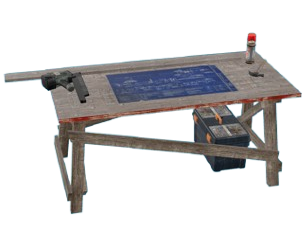
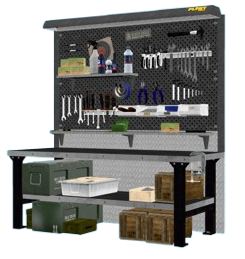
Copy the item images from sd-crafting/images/ to your inventory's image folder. You can also download them directly from the container below.
4 Start the Resource
To load the resource, you can either:
- Restart your server entirely, or
- Run the following commands in your server console (F8 or txAdmin live console):
refresh
ensure sd-crafting
Configuration
Configure the resource to fit your server's needs. See the Configuration pages for detailed explanations of each setting, or edit the files directly in the configs/ folder.