
Installation
sd-phone is required
sd-tablet renders sd-phone's UI and forwards every action into sd-phone's client and server. It has no apps, no database tables and no server logic of its own. Install sd-phone first and make sure it starts before the tablet, or the resource refuses to start.
Supported Inventories
| Inventory | Status |
|---|---|
ox_inventory | Supported |
tgiann-inventory | Supported |
jaksam_inventory | Supported |
qs-inventory | Supported |
qs-inventory-pro | Supported |
origen_inventory | Supported |
qb-inventory | Supported |
ps-inventory | Supported |
lj-inventory | Supported |
codem-inventory | Supported |
The same list sd-phone supports, detected the same way. If your inventory works there, it works here.
Dependencies
| Dependency | Required | Notes |
|---|---|---|
| sd-phone | Yes | Every app, every callback and all player data. The tablet is inert without it |
| Framework | Yes | qb-core / qbx_core / es_extended |
| ox_lib | Yes | |
| oxmysql | Yes | Used by sd-phone; the tablet touches no database of its own |
| sd-tablet-props | Optional | Streams the coloured sd_tablet_<colour> hand props. Without it the tablet still works, players just hold nothing visible |
TIP
Framework and inventory are detected automatically, so there is nothing to configure. sd-tablet creates no database tables and ships no SQL of its own, because all data belongs to sd-phone.
1 Add the Resource
sd-tablet builds sd-phone's interface from source, so there is a one-time build step. It is quick.
- Get the source from the repo: either the green Code button > Download ZIP, or
git clone https://github.com/Samuels-Development/sd-tablet.git. - If you downloaded the ZIP, the folder is named
sd-tablet-main. Rename it tosd-tablet, or the resource will not start in-game. - Place
sd-tabletin the same folder assd-phone. If sd-phone lives in a category folder such as[sd], put sd-tablet in that same folder. - Install Node.js (the LTS version) if you do not have it. Close and reopen any terminal afterwards so the
npmcommand is available. - Open a terminal inside the tablet's
webfolder. On Windows, find thewebfolder insidesd-tablet, right-click it and choose Copy as path, then in Command Prompt or PowerShell typecdand paste. You are in the right place when the line ends with...\sd-tablet\web>. - Run these two commands, one at a time, waiting for each to finish:
npm install
npm run build- When the second command prints something like
built in 6.07s, aweb/buildfolder has appeared. That is the compiled tablet.
"Next to sd-phone" is not cosmetic
The build resolves sd-phone's source through a relative path (../../sd-phone/web/src). If the two resources are not siblings, the build cannot find it and fails. This is also why the tablet must be rebuilt whenever you update sd-phone.
bun works too
If you already use bun, bun install && bun run build does the same thing. Neither is required over the other.
2 Add Items
Register 8 items, one per colour. Using one opens the tablet holding the matching sd_tablet_<colour> prop, exactly as the phone items pick their frame colour. The keybind reopens with the colour you last used, as long as you still carry it.
['tablet_black'] = {
    label = 'Tablet',
    weight = 700,
    stack = false,
    close = true,
    description = 'A tablet. Everything your phone does, except calls.',
    consume = 0,
    server = { export = 'sd-tablet.useTablet_black' }
},

['tablet_blue'] = {
    label = 'Blue Tablet',
    weight = 700,
    stack = false,
    close = true,
    description = 'A tablet. Everything your phone does, except calls.',
    consume = 0,
    server = { export = 'sd-tablet.useTablet_blue' }
},

['tablet_green'] = {
    label = 'Green Tablet',
    weight = 700,
    stack = false,
    close = true,
    description = 'A tablet. Everything your phone does, except calls.',
    consume = 0,
    server = { export = 'sd-tablet.useTablet_green' }
},

['tablet_orange'] = {
    label = 'Orange Tablet',
    weight = 700,
    stack = false,
    close = true,
    description = 'A tablet. Everything your phone does, except calls.',
    consume = 0,
    server = { export = 'sd-tablet.useTablet_orange' }
},

['tablet_pink'] = {
    label = 'Pink Tablet',
    weight = 700,
    stack = false,
    close = true,
    description = 'A tablet. Everything your phone does, except calls.',
    consume = 0,
    server = { export = 'sd-tablet.useTablet_pink' }
},

['tablet_purple'] = {
    label = 'Purple Tablet',
    weight = 700,
    stack = false,
    close = true,
    description = 'A tablet. Everything your phone does, except calls.',
    consume = 0,
    server = { export = 'sd-tablet.useTablet_purple' }
},

['tablet_red'] = {
    label = 'Red Tablet',
    weight = 700,
    stack = false,
    close = true,
    description = 'A tablet. Everything your phone does, except calls.',
    consume = 0,
    server = { export = 'sd-tablet.useTablet_red' }
},

['tablet_yellow'] = {
    label = 'Yellow Tablet',
    weight = 700,
    stack = false,
    close = true,
    description = 'A tablet. Everything your phone does, except calls.',
    consume = 0,
    server = { export = 'sd-tablet.useTablet_yellow' }
},['tablet_black'] = { name = 'tablet_black', label = 'Tablet', weight = 700, type = 'item', image = 'tablet_black.png', unique = true, useable = true, shouldClose = true, description = 'A tablet. Everything your phone does, except calls.' },
['tablet_blue'] = { name = 'tablet_blue', label = 'Blue Tablet', weight = 700, type = 'item', image = 'tablet_blue.png', unique = true, useable = true, shouldClose = true, description = 'A tablet. Everything your phone does, except calls.' },
['tablet_green'] = { name = 'tablet_green', label = 'Green Tablet', weight = 700, type = 'item', image = 'tablet_green.png', unique = true, useable = true, shouldClose = true, description = 'A tablet. Everything your phone does, except calls.' },
['tablet_orange'] = { name = 'tablet_orange', label = 'Orange Tablet', weight = 700, type = 'item', image = 'tablet_orange.png', unique = true, useable = true, shouldClose = true, description = 'A tablet. Everything your phone does, except calls.' },
['tablet_pink'] = { name = 'tablet_pink', label = 'Pink Tablet', weight = 700, type = 'item', image = 'tablet_pink.png', unique = true, useable = true, shouldClose = true, description = 'A tablet. Everything your phone does, except calls.' },
['tablet_purple'] = { name = 'tablet_purple', label = 'Purple Tablet', weight = 700, type = 'item', image = 'tablet_purple.png', unique = true, useable = true, shouldClose = true, description = 'A tablet. Everything your phone does, except calls.' },
['tablet_red'] = { name = 'tablet_red', label = 'Red Tablet', weight = 700, type = 'item', image = 'tablet_red.png', unique = true, useable = true, shouldClose = true, description = 'A tablet. Everything your phone does, except calls.' },
['tablet_yellow'] = { name = 'tablet_yellow', label = 'Yellow Tablet', weight = 700, type = 'item', image = 'tablet_yellow.png', unique = true, useable = true, shouldClose = true, description = 'A tablet. Everything your phone does, except calls.' },INSERT INTO `items` (`name`, `label`, `weight`, `rare`, `can_remove`) VALUES
('tablet_black', 'Tablet', 700, 0, 1),
('tablet_blue', 'Blue Tablet', 700, 0, 1),
('tablet_green', 'Green Tablet', 700, 0, 1),
('tablet_orange', 'Orange Tablet', 700, 0, 1),
('tablet_pink', 'Pink Tablet', 700, 0, 1),
('tablet_purple', 'Purple Tablet', 700, 0, 1),
('tablet_red', 'Red Tablet', 700, 0, 1),
('tablet_yellow', 'Yellow Tablet', 700, 0, 1);Upgrading from an earlier build? Add the legacy tablet item too
Before the colours existed there was a single item named tablet. It is still listed in configs/tablet.lua so tablets already sitting in players' inventories keep working, and it opens in black. If you are installing fresh you do not need it.
['tablet'] = {
    label = 'Tablet',
    weight = 700,
    stack = false,
    close = true,
    description = 'A tablet. Everything your phone does, except calls.',
    consume = 0,
    server = { export = 'sd-tablet.useTablet' }
},
3 Add Item Images
Copy the item images from sd-tablet/images/ into your inventory's image folder (ox_inventory/web/images/, qb-inventory/html/images/, and so on). You can also download them directly from the container below.
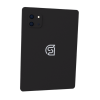
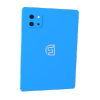
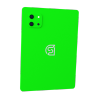
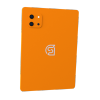
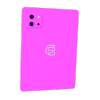
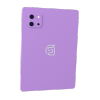
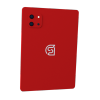
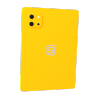
The files are named after the items, so ox_inventory picks them up automatically with no image field needed.
4 Start the Resource
Ensure the tablet after sd-phone. Order matters: sd-phone owns every callback the tablet forwards into.
ensure ox_lib
ensure oxmysql

ensure sd-phone-props
ensure sd-tablet-props

ensure sd-phone
ensure sd-tablet
To load it, either restart your server entirely, or run the following in your server console (F8 or txAdmin live console):
refresh
ensure sd-tablet
5 Open It
Press F2, or use one of the tablet items.
Players can rebind the key through FiveM's own menu (Settings > Key Bindings > FiveM). The default is F2 because F1 is the phone's. Only one device is on screen at a time: opening the tablet closes the phone, and the reverse.
The tablet will not open on SIM-card servers
If sd-phone is running unique phones with SIM cards, the tablet stays closed and says so. Under that mode a player's identity comes from the SIM in their active phone, and a tablet has no SIM tray, so it has no identity to act as. It refuses rather than showing the wrong player's data. Everything else about the tablet is unaffected on servers that do not use SIM mode.
6 Turn On the MDT (optional)
The tablet ships with the MDT, sd-phone's police terminal, and it is the one app that only makes sense on this screen. Its icon is on the home screen from the start, but the backend lives in sd-phone and is off by default, so out of the box it opens to a locked screen and the server console says so once.
In sd-phone, edit configs/mdt.lua:
Enabled = true,Restart sd-phone and the MDT builds its tables on the next boot. The rest of that file is where you declare which jobs get a terminal, what each rank may do, and the penal code, all of it enforced server-side.
Leave it off if nobody on your server needs a terminal. A disabled MDT creates no tables, seeds nothing and runs no threads, which is the whole reason the switch exists.
Updating
The tablet compiles sd-phone's interface, so the two move together:
Every time you update sd-phone, rebuild the tablet. Run npm run build again inside sd-tablet/web. The server loads the compiled web/build folder, not the source, so an out-of-date tablet keeps showing the old interface while the phone shows the new one. A stale build usually looks like a new app's icon appearing blank and doing nothing when tapped.
Configuration
Open and close behaviour, the keybind, the hold pose and prop, movement, safety blocks and the cosmetic status bar all live in configs/tablet.lua. The dock, wallpaper and app catalog live in configs/apps.lua.
The item list itself is in configs/tablet.lua too, if you want different item names. Set RequireItem = false there to give everyone the keybind without carrying anything, or Items = false to drop item-based opening entirely.
Everything else the tablet displays is configured in sd-phone's own config, because the data is the phone's.
A few values must match sd-phone
configs/tablet.lua deliberately duplicates a handful of sd-phone settings for display purposes: Mail.Domain must match sd-phone's configs/mail.lua, and Number must match sd-phone's configs/phone.lua, or the same address and number get formatted two different ways on the two devices.
AllowMovement and AllowMovementInCamera must also match sd-phone's. That pair is not just a movement preference: it is how the tablet works out which camera sd-phone opened the viewfinder with. Get it wrong and the tablet either vanishes from the player's hands or sits there alongside a phone the game spawned.