
Custom Apps
Other resources can put their own programs on the computers. An app is a web page from your resource: the desktop gives it an icon, a window, a taskbar or dock entry and a count badge, opens it in all three looks, and puts a small API into the page for dialogs, notifications, printing, storage, opening other apps and reaching your own server.
Needs sd-computers v1.1.0 or newer
Start from a template
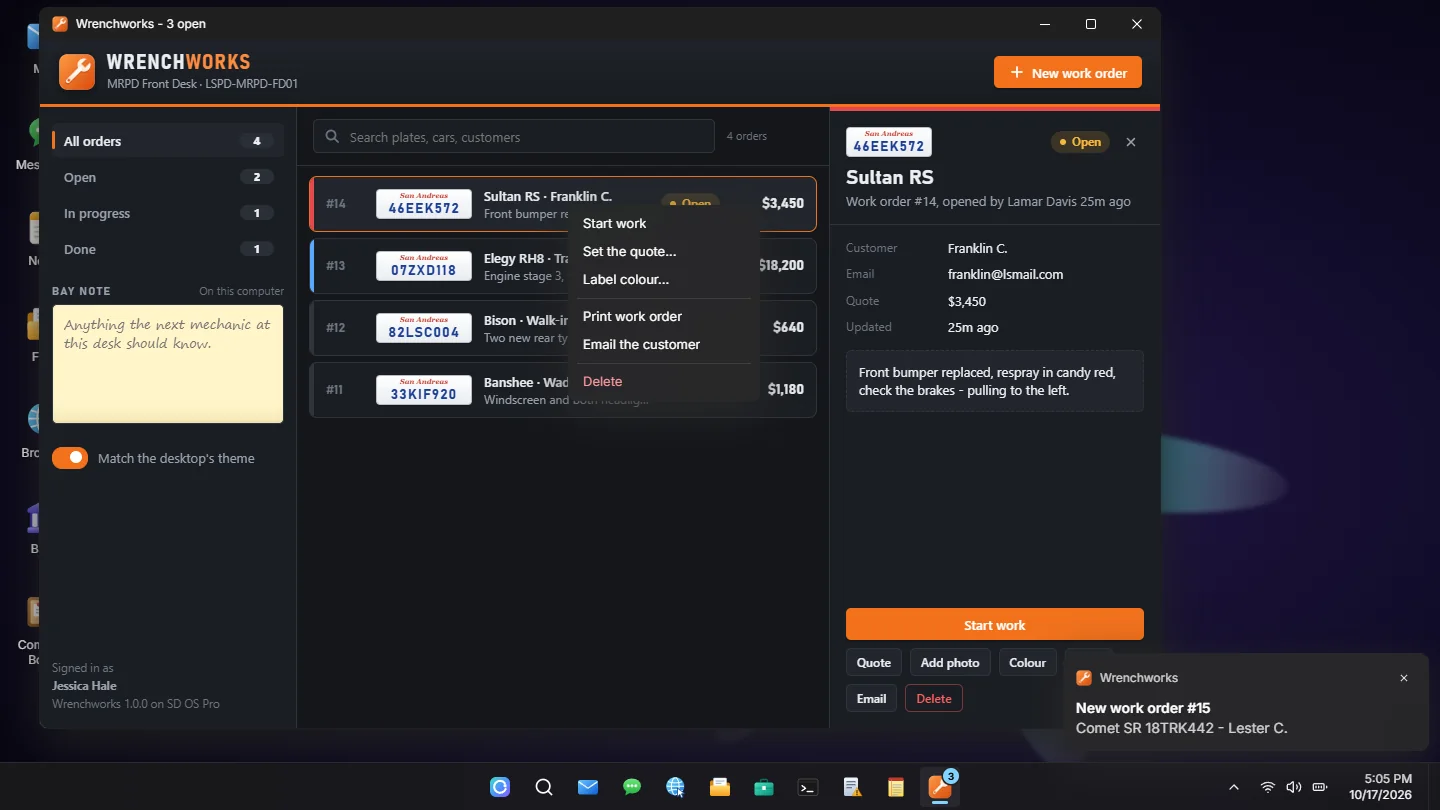
sd-computers-app-templates contains six complete example resources: the same small app in each stack (plain HTML/CSS/JS, React with JavaScript, React with TypeScript, Vue 3 and Svelte 5), and Wrenchworks, a full program that uses every call on this page. Copy one, rename it, and start building. See The example app.
How it fits together
| Part | Where it runs | What it does |
|---|---|---|
AddCustomApp | Your server script | Registers the app: its page, icon, who gets it on which computer, and the server functions its page can call |
| The page | The app's window | Your HTML. The desktop frames it from https://cfx-nui-<your resource>/... and puts the SDK into it as window.computer |
computer.callServer | Page to your server | Calls one of the endpoints you registered, only ever for a player signed in at a computer that has your app |
computer.fetchNui | Page to your client | Calls your resource's own RegisterNUICallback handlers, for what only the game knows |
SendAppMessage | Your server or client to the page | Pushes data to the open window, heard by computer.onMessage |
The app is registered on the server, because the server already decides everything a computer session has: which apps are on the desktop, and whether a call is allowed. Your page never needs to check that the player is really at a computer: an endpoint does not run otherwise.
Registering an app
Syntax
local ok, err = exports['sd-computers']:AddCustomApp(app)| Field | Type | Required | Description |
|---|---|---|---|
id | string | yes | Unique id: 1-48 characters of a-z, 0-9, _ and -. The ids of the desktop's own apps (mail, files, ...) are reserved. identifier works too |
label | string | yes | The name under the icon and on the window. name works too |
ui | string | no | The page: 'my-res/web/index.html' (served as https://cfx-nui-my-res/web/index.html), or a full http(s):// address such as a Vite dev server. Without one the window says the app has no window of its own |
icon | string | no | The icon, in the same forms as ui. Square, any size, SVG or PNG. Without one the desktop draws a tile with the label's first letter |
color | string | no | '#rrggbb': the tile behind a missing icon |
description | string | no | What it does (200 characters) |
developer | string | no | Who made it |
version | string | no | Shown to the page as computer.app.version |
size | { w, h } | no | The window's size, 320x200 to 1600x1000. Default 900x600 |
resizable | boolean | no | false keeps the window at its size. Default true |
desktop | boolean | no | An icon on the desktop. Default true |
pinned | boolean | no | On the taskbar (modern) and dock (mac). Default false |
computers | string | string[] | no | Only these computers (ids from configs/shared/computers.lua, or placed_<n>). Absent = every computer |
styles | string | string[] | no | Only these looks: 'modern', 'mac', 'retro'. Absent = all three |
groups | string | string[] | table | no | Only these jobs or gangs: 'mechanic', { 'mechanic', 'tuner' }, or { mechanic = 2 } with a minimum grade. Absent = everyone |
items | string | string[] | no | Only while the player carries each of these items |
check | function(src, ctx) | no | Your own gate: return true to give the app. Any other answer, or an error, leaves it off |
endpoints | table | no | The functions the page can call: { ['orders:list'] = function(src, data, ctx) ... end }. See Endpoints |
print | function(src, data, ctx) | no | Builds the page computer.print sends to a printer. See Printing |
onOpen | function(src, ctx) | no | The player opened the app's window (again after signing back in, for a window left open) |
onClose | function(src, ctx) | no | The window closed: closed by the player, the computer locked or closed, or the app left their desktop |
| Return | Type | Description |
|---|---|---|
ok | boolean | Whether it was registered |
err | string? | Why not |
The gates are checked as the player opens a computer, again whenever an app is registered or taken away, and on RefreshApps. An app that turns up or goes away while a player is at a computer appears on, or disappears from, their desktop there and then; its window closes if it is gone.
ctx, handed to every function above, says who and where:
ctx = {
    source = 12, citizenid = 'ABC12345', name = 'Jessica Hale', app = 'wrenchworks',
    computer = { id = 'mrpd_frontdesk', label = 'MRPD Front Desk', hostname = 'LSPD-MRPD-FD01',
                 ip = '10.42.17.88', instance = 'mrpd_frontdesk', style = 'modern', coords = { x, y, z } },
}
ctx.computer.instance is the machine, which is what AddLog takes: one prop of a model computer is '<id>@x,y,z'.
When to register
Apps live in sd-computers' memory, so register whenever it is ready: at its start, at every restart, and once at yours in case it was already running.
local function register()
    local ok, err = exports['sd-computers']:AddCustomApp({
        id = 'my-app',
        label = 'My App',
        ui = GetCurrentResourceName() .. '/web/index.html',
        icon = GetCurrentResourceName() .. '/web/icon.svg',
        endpoints = endpoints,
    })
    if not ok then print('could not register: ' .. err) end
end

-- sd-computers started (or restarted) and its exports are ready.
AddEventHandler('sd-computers:ready', register)

-- Already running when this resource started.
CreateThread(function()
    if GetResourceState('sd-computers') == 'started' then pcall(register) end
end)
Registering the same id again from the same resource replaces the app, so calling register() twice is safe. Another resource cannot take it over. Apps go away by themselves when their resource stops, or with RemoveCustomApp.
Do not list sd-computers as a dependency
dependency 'sd-computers' in your manifest makes FiveM stop your resource whenever sd-computers stops, and a restart of sd-computers does not start it again. Leave it out and register on sd-computers:ready, as above. onResourceStart for sd-computers is too early: it fires while sd-computers is still setting up its database, before its exports exist.
Every field at once
exports['sd-computers']:AddCustomApp({
    id          = 'wrenchworks',
    label       = 'Wrenchworks',
    ui          = 'wrenchworks/web/index.html',
    icon        = 'wrenchworks/web/icon.svg',
    color       = '#f2711c',
    description = 'Work orders for your garage.',
    developer   = 'Wrenchworks Software',
    version     = '1.0.0',
    size        = { w = 1120, h = 720 },
    resizable   = true,
    desktop     = true,
    pinned      = true,

    computers   = { 'public_pc', 'business_laptop' },
    styles      = { 'modern', 'mac' },
    groups      = { mechanic = 0 },
    items       = 'tablet',
    check       = function(src, ctx) return true end,

    endpoints   = {
        ['orders:list'] = function(src, data, ctx) return { orders = orders } end,
    },
    print       = function(src, data, ctx) return { title = 'Work order', body = '...' } end,
    onOpen      = function(src, ctx) end,
    onClose     = function(src, ctx) end,
})
The gates decide what is on the desktop, nothing more
groups, items and check decide whether a player gets the app's icon. Your endpoints only run for a player who has the app open, so they inherit that, and they are behind the computer's own checks (signed in, still at the desk). But anything your resource does outside of them - its own events, its own callbacks - is reachable without any computer, so check those yourself. And an endpoint should still check what matters to it: whether this player may change this order.
The page
List the page's files in your manifest, and do not set a ui_page for it: FiveM lays a resource's ui_page over the game at all times, and a computer does not need it to frame the page.
files {
    'web/index.html',
    'web/app.css',
    'web/app.js',
    'web/icon.svg',
}
The desktop puts the SDK into your page after the page has loaded, as window.computer. Start once it is there:
function whenComputer() {
  return new Promise(resolve => {
    if (window.computer && window.computer.isReady) return resolve(window.computer);
    window.addEventListener('computer:ready', e => resolve(e.detail), { once: true });
  });
}

whenComputer().then(computer => {
  // computer.app, computer.machine, computer.user, computer.settings ...
});
A page served from somewhere the desktop cannot reach into (a dev server on localhost, a website) loads the SDK itself and works the same way:
<script src="https://cfx-nui-sd-computers/web/build/sdk/sdcomputers.js"></script>
<script>computer.ready().then(start);</script>
Types for the whole API ship next to it, web/build/sdk/sdcomputers.d.ts: copy it beside your page's source for completion and type checking.
computer.inComputer is false when the page is opened in a plain browser tab, which is where you render mock data.
What the page is told
| Property | Description |
|---|---|
computer.app | { id, label, resource, version, developer } |
computer.machine | { id, label, hostname, ip, style, os, build }: the computer it is open on |
computer.user | { name, initials, job }: the character at the desk |
computer.settings | { theme, style, accent, clock24, colors, font }: see Matching the desktop |
computer.launch | What the app was opened with: OpenApp's props, or another app's computer.openApp(id, props) |
computer.version | Bumped when this API changes |
computer.supports(name) | Whether a call works here: computer.supports('pickPhoto') is false on a computer without Photos, print while printing is off |
Talking to your resource
Endpoints
The page calls the functions you registered under endpoints with computer.callServer:
endpoints = {
    ['orders:create'] = function(src, data, ctx)
        if type(data) ~= 'table' or not data.plate then
            return false, 'A work order needs the plate.'
        end
        local order = createOrder(data, ctx.name)
        return order
    end,
}try {
const order = await computer.callServer('orders:create', { plate: '46EEK572', work: 'Respray' });
} catch (err) {
computer.dialog.alert({ title: 'Could not file it', message: err.message }); // 'A work order needs the plate.'
}An endpoint returns its answer, which the page gets as JSON. To refuse, return false and a message: the page's promise rejects with that message.
false, 'message' - not nil, 'message'
What a function in another resource returns crosses into sd-computers as a list, and a list cannot start with nil: return nil, 'message' arrives as nothing at all, and the page's call succeeds with null. Return false in front of the message.
An endpoint that throws an error is logged in your resource's console, and the page is told only that something went wrong. Each player's app can make 15 calls a second (CallsPerSecond in configs/shared/apps.lua); past that a call is refused before it reaches you.
Your client script
computer.fetchNui(event, data) posts to your resource's own NUI callbacks, the same as any NUI page. Use it for what only the player's game knows:
RegisterNUICallback('carInBay', function(_, cb)
    cb(nearestVehicle() or false)
end)const car = await computer.fetchNui('carInBay');fetchNui resolves undefined on any failure; computer.fetchNuiStrict rejects instead. The SDK also sets a global fetchNui when the page has none of its own.
Pushing to the page
From your server, to one player or to everyone with the app open:
exports['sd-computers']:SendAppMessage(source, 'wrenchworks', 'orders', { orders = orders })
exports['sd-computers']:SendAppMessage(-1, 'wrenchworks', 'orders', { orders = orders })
From your client, in sd-phone's shape:
exports['sd-computers']:SendCustomAppMessage('wrenchworks', { action = 'bay', data = car })In the page:
const stop = computer.onMessage('orders', data => render(data.orders));
computer.onMessage('*', (action, data) => console.log(action, data)); // every action
Messages sent while the page is still starting are held and handed over once it is ready. Pull the first data from the page (an endpoint) rather than pushing it from onOpen: the page may not be listening yet.
The desktop's own pieces
Notifications and badges
await computer.notify({ title: 'Order #12 is done', body: 'Lamar finished the Sultan RS', data: { order: 12 } });
computer.onNotificationClick(data => openOrder(data.order));

await computer.setBadge(3); // 0 clears it
A notification carries your app's icon and name. Clicking it brings the app up (opening it if it was closed) and hands data back to the page. The badge sits on your icon on the taskbar, dock and desktop (retro, a 1991 desktop, has none). It is kept per player on the server, so it is still there at the next computer they sit at. Your server can do both: NotifyApp and SetAppBadge.
Dialogs and menus
The desktop's own dialogs, drawn over your page in the look the computer has:
await computer.dialog.alert({ title: 'Saved', message: 'The order is on the board.' });

const yes = await computer.dialog.confirm({
  title: 'Delete work order #12?', message: 'It comes off the board for everyone.',
  confirmLabel: 'Delete', cancelLabel: 'Keep it', danger: true,
});

const quote = await computer.dialog.prompt({
  title: 'Quote', message: 'What will it cost?', value: '1200', placeholder: '0', maxLength: 10,
}); // null when cancelled; password: true masks it

row.addEventListener('contextmenu', e => computer.menu(e, [
  { label: 'Start work', onClick: () => start(order) },
  { separator: true },
  { label: 'Delete', danger: true, onClick: () => remove(order) },
]));
computer.menu resolves the picked item's id (its index when it has none) or null, and runs its onClick. One dialog at a time: asking for a second while one is up rejects.
Pictures and colours
const photo = await computer.pickPhoto(); // { url, id } or null
const colour = await computer.pickColor('#f2711c'); // '#rrggbb' or null
pickPhoto is the Photos app's own picker: the character's pictures, or a new one added by its link (only from the hosts configs/shared/photos.lua allows).
Printing
computer.print puts up the desktop's print dialog: a printer in reach of the computer, and how many copies. The page comes out of that printer like any other, waits in its tray, and is taken as the printout item.
Give your app a print function and the page is built on your server, from your own data, so a printed order is what your order book says, whatever the page asked:
print = function(src, data, ctx)
    local order = orders[data.id]
    if not order then return false, 'That order is gone.' end
    return {
        title = ('Work order #%d'):format(order.id),
        letterhead = 'WRENCHWORKS',
        subhead = ctx.computer.label,
        fields = { { label = 'Vehicle', value = order.model }, { label = 'Quote', value = '$' .. order.quote } },
        body = order.work,
        image = order.photo,
        footer = 'Thank you for your custom.',
    }
end,const sent = await computer.print({ title: 'Work order #12', data: { id: 12 } }); // true once it went to a printerThe page can have title, letterhead, subhead, fields ({ label, value }), body, table ({ head, rows }), image (https) and footer; see PrintAt for the limits. An app without a print function can still print what the player typed, as a plain page: computer.print({ title, text }).
Opening other apps
await computer.openApp('mail', { to: 'franklin@lsmail.com', subject: 'Your car is ready' });
await computer.openApp('browser', { address: 'weazel.news' });
await computer.openApp('messages', { number: '5551234' });
await computer.openApp('wrenchworks', { order: 12 }); // another custom app, by its id
Rejects when the app is not on this computer.
Storage
Small values your app keeps, as JSON, either for the character (they follow them to every computer) or for the computer (everyone who uses that machine sees the same ones):
await computer.storage.set('prefs', { filter: 'open' });
const prefs = await computer.storage.get('prefs', { filter: 'all' }); // the fallback when there is none

await computer.storage.set('bay-note', 'Lift 2 is out', { scope: 'computer' });
const keys = await computer.storage.keys();
await computer.storage.remove('prefs'); // or set(key, null)
await computer.storage.clear({ scope: 'computer' });
It is kept on the server, in the computers_app_data table. Each app has 64 names and 64 KB per character, and the same per computer (Storage in configs/shared/apps.lua). Names are case-sensitive. set never throws: it resolves false when a write is refused, for size or for too many writes in a row (20 every 5 seconds).
What is stored here is written by the page, and the page runs on the player's own game: treat it like anything else a client sends. Preferences, drafts and notes belong here; a balance, a rank or anything your server's rules depend on belongs in your own resource's storage, changed through your endpoints.
The Event Viewer, and sounds
await computer.log('Bay note changed', 'information'); // 'information' | 'warning' | 'error'
await computer.sound('notify'); // 'notify' | 'error' | 'click', in the look's own voice
computer.log writes a line in this computer's Event Viewer under your app's name (20 a minute per player). Your server writes there with AddLog and ctx.computer.instance.
The window
computer.window.setTitle('Wrenchworks - 3 open');
computer.window.minimize();
computer.window.maximize();
computer.window.restore();
computer.window.focus();
computer.window.close();

const stop = computer.window.on(state => {
  // { focused, minimized, maximized, width, height, title }
  document.body.classList.toggle('dimmed', !state.focused);
});

computer.window.preventClose('The order you are writing is not filed yet.'); // false to stop asking
With preventClose set, closing the window - or standing up from the computer - asks the player first, with your message.
The page also gets computer.onLaunch(cb) when the app is brought up again with new launch props, and computer.onSettings(cb) when the desktop's look changes.
Matching the desktop
Your page keeps its own look: it is your program. The desktop tells it what it looks like, for an app that wants to fit in or follow light and dark:
computer.settings:{ theme: 'dark' | 'light', style: 'modern' | 'mac' | 'retro', accent, clock24, colors, font }, andcomputer.onSettings(cb)when it changes.- On the page's
<html>:data-themeanddata-style, and CSS variables--sdc-background,--sdc-surface,--sdc-card,--sdc-text,--sdc-text-secondary,--sdc-text-tertiary,--sdc-border,--sdc-border-strong,--sdc-accent,--sdc-accent-fill,--sdc-accent-text,--sdc-on-accent,--sdc-success,--sdc-caution,--sdc-criticaland--sdc-font.
html[data-style='retro'] .card { border-radius: 0; }
html[data-theme='light'] .app { --bg: #f4f2ee; }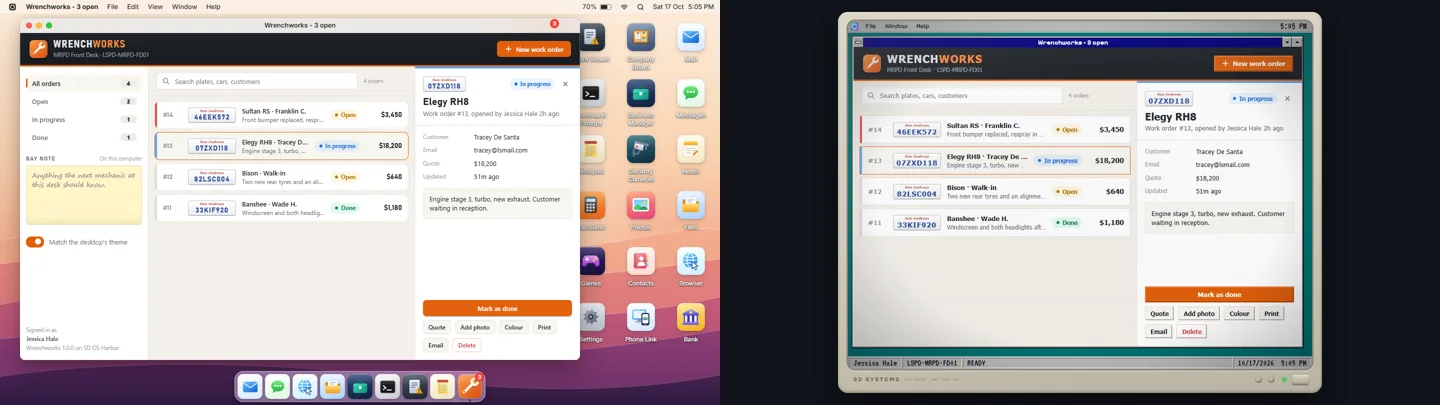
Keys
Escape your page does not use (no preventDefault) is the desktop's: on the desktop it stands the player up, and while they are typing in one of your fields the first press only warns them, as the desktop's own fields do. Alt+F4 closes the window. To keep Escape for yourself - to close your own panel - call e.preventDefault() in your handler, and only when it did something.
The screen other players see
A computer in use shows a live copy of its screen on the prop to the players standing nearby. Your page is never part of that copy: they see your app's icon and name where its window is.
Exports
Server
| Export | Description |
|---|---|
AddCustomApp(app) | Register an app, or replace your own. Returns ok, err |
RemoveCustomApp(id) | Take your app away |
GetCustomApps() | Every registered app |
SendAppMessage(target, id, action, data) | Push to the page |
NotifyApp(target, id, n) | A notification from the app |
SetAppBadge(target, id, count) | The count on the app's icon |
OpenApp(source, id, props) | Open the app's window for a player |
CloseApp(source, id) | Close it |
GetAppUsers(id) | Who has its window open |
HasApp(source, id) | Whether a player is at a computer with it |
GetComputerSession(source) | Where a player is sitting |
RefreshApps(source?) | Look at the gates again |
Every export also answers to its camelCase name (addCustomApp, sendAppMessage, ...), the way sd-phone spells its own. The ones that change an app (messages, notifications, badges, opening and closing it) only work for the resource that registered it.
target is a player's server id, or -1: everyone with the app's window open (SendAppMessage), everyone at a computer that has the app (NotifyApp), or every player online (SetAppBadge).
RemoveCustomApp
local ok, err = exports['sd-computers']:RemoveCustomApp('wrenchworks')GetCustomApps
local apps = exports['sd-computers']:GetCustomApps()
-- { { id, label, resource, description, developer, version, ui, icon }, ... }
SendAppMessage
exports['sd-computers']:SendAppMessage(target, 'wrenchworks', 'orders', { orders = orders })Heard by computer.onMessage('orders', cb).
NotifyApp
exports['sd-computers']:NotifyApp(source, 'wrenchworks', {
    title = 'New work order #15', body = 'Comet SR - Lester C.', data = { order = 15 },
})
Shown only to a player signed in at a computer that has the app. data reaches computer.onNotificationClick when it is clicked.
SetAppBadge
exports['sd-computers']:SetAppBadge(-1, 'wrenchworks', openOrders)Kept per player until they leave the server, so it is there whenever they sit down.
OpenApp
local ok, err = exports['sd-computers']:OpenApp(source, 'wrenchworks', { order = 12 })Opens (or brings forward) the app's window for one player signed in at a computer that has it (not -1). props arrive as computer.launch, and as computer.onLaunch when the window was open already.
CloseApp
exports['sd-computers']:CloseApp(source, 'wrenchworks')GetAppUsers
local players = exports['sd-computers']:GetAppUsers('wrenchworks') -- { 3, 12 }HasApp
if exports['sd-computers']:HasApp(source, 'wrenchworks') then ... endGetComputerSession
local ctx = exports['sd-computers']:GetComputerSession(source)
-- nil, or the ctx above with signedIn = true | false
RefreshApps
exports['sd-computers']:RefreshApps(source) -- nil = everyone at a computerLooks at every app's groups, items and check again for a player sitting at a computer (or, with no argument, for everyone at one), and adds or removes icons to match. Call it when something your check reads has changed, or after giving or taking an item an app needs. An app a player loses closes its window, with its onClose.
Client
| Export | Description |
|---|---|
SendCustomAppMessage(id, { action, data }) | Push to your app's page from this client (sd-phone's shape). SendAppMessage(id, action, data) is the same |
IsAppOpen(id) | Whether your app's window is open on this player's desktop |
GetCurrentComputer() | { id, instance, coords } of the computer the player is using, or nil |
And two local client events, for a client script that only runs while its window is open:
AddEventHandler('sd-computers:appOpened', function(id, computer)
    if id ~= 'wrenchworks' then return end
    -- start watching something, and SendCustomAppMessage what changes
end)

AddEventHandler('sd-computers:appClosed', function(id)
    if id == 'wrenchworks' then watching = false end
end)
Server events
| Event | When |
|---|---|
sd-computers:ready | sd-computers has started (or restarted) and its exports are ready: register your apps |
Configuration
configs/shared/apps.lua is the server owner's say over every custom app:
return {
    Enabled = true,          -- false = no custom app is ever installed
    Blocked = {},            -- app ids refused even when a resource registers them
    MaxApps = 64,            -- most custom apps registered at once
    Storage = {
        MaxKeys = 64,        -- names one app keeps per character, and per computer
        MaxBytes = 65536,    -- bytes of names and values together
    },
    CallsPerSecond = 15,     -- computer.callServer calls per player per app
    LogsPerMinute = 20,      -- computer.log lines per player
}
The example app
Wrenchworks (wrenchworks in the app templates) is a garage's work-order book. Mechanics file an order for the car in the bay, start it, mark it done, print it for the customer and email them, and everyone with the app open sees each change as it happens.
| What it does | What it uses |
|---|---|
| The order book, kept on its server (a resource KVP) | endpoints, computer.callServer, false, 'message' refusals |
| Every open window updates, and every icon counts the open orders | SendAppMessage(-1, ...), SetAppBadge(-1, ...) |
| A notification for the other mechanics when an order is filed | NotifyApp, computer.onNotificationClick |
| "In the bay": the car next to the player | fetchNui, SendCustomAppMessage, sd-computers:appOpened / appClosed, IsAppOpen |
| Right-click an order; delete, set a quote | computer.menu, dialog.confirm, dialog.prompt, dialog.alert, computer.sound |
| A photo and a label colour on an order | computer.pickPhoto, computer.pickColor |
| Print an order; email the customer | print, computer.print, computer.openApp('mail', ...) |
| A finished order goes into the Event Viewer | AddLog with ctx.computer.instance |
| The bay note on each computer, and the player's filter | computer.storage with both scopes, computer.log |
| A half-written order asks before the window closes | computer.window.preventClose |
| The title says how many are open; the header dims in the background | computer.window.setTitle, computer.window.on |
| Its own look, following light and dark, square on retro | computer.settings, onSettings, data-style |
/workorder 12 opens it on that order | OpenApp, computer.launch, computer.onLaunch |
Copy the folder into your resources and ensure wrenchworks after sd-computers. The five smaller templates show the same setup in each stack, with ui/dist already built; in them, Config.DevServer = 'http://localhost:5173' points the app at npm run dev for live reload, and their index.html loads the SDK itself, as a page on another address needs (see The page). In sd-computers' own browser dev server (npm run dev in web/, with the templates checked out beside sd-computers), #ext:wrenchworks opens the example with mock data.
Coming from sd-phone
| sd-phone | sd-computers |
|---|---|
addCustomApp on the client | AddCustomApp on the server |
identifier, name | id, label (the sd-phone names work too) |
job, requires | groups, items, check (and computers, styles) |
defaultApp, App Store | Every app is installed; the gates decide who sees it |
componentsLoaded | computer:ready, computer.ready() |
fetchNui, useNuiEvent | computer.fetchNui, computer.onMessage |
sendCustomAppMessage(id, { action, data }) | The same, SendCustomAppMessage on the client; SendAppMessage(target, id, action, data) on the server |
SetPopUp, SetContextMenu | computer.dialog.*, computer.menu |
SendNotification | computer.notify, NotifyApp |
GetStorage / SetStorage (device-local) | computer.storage (on the server, per character or per computer) |
onOpen / onClose on the client | onOpen / onClose on the server; sd-computers:appOpened / appClosed on the client |
| - | callServer endpoints, computer.print, computer.openApp, computer.window, badges, computer.log |